
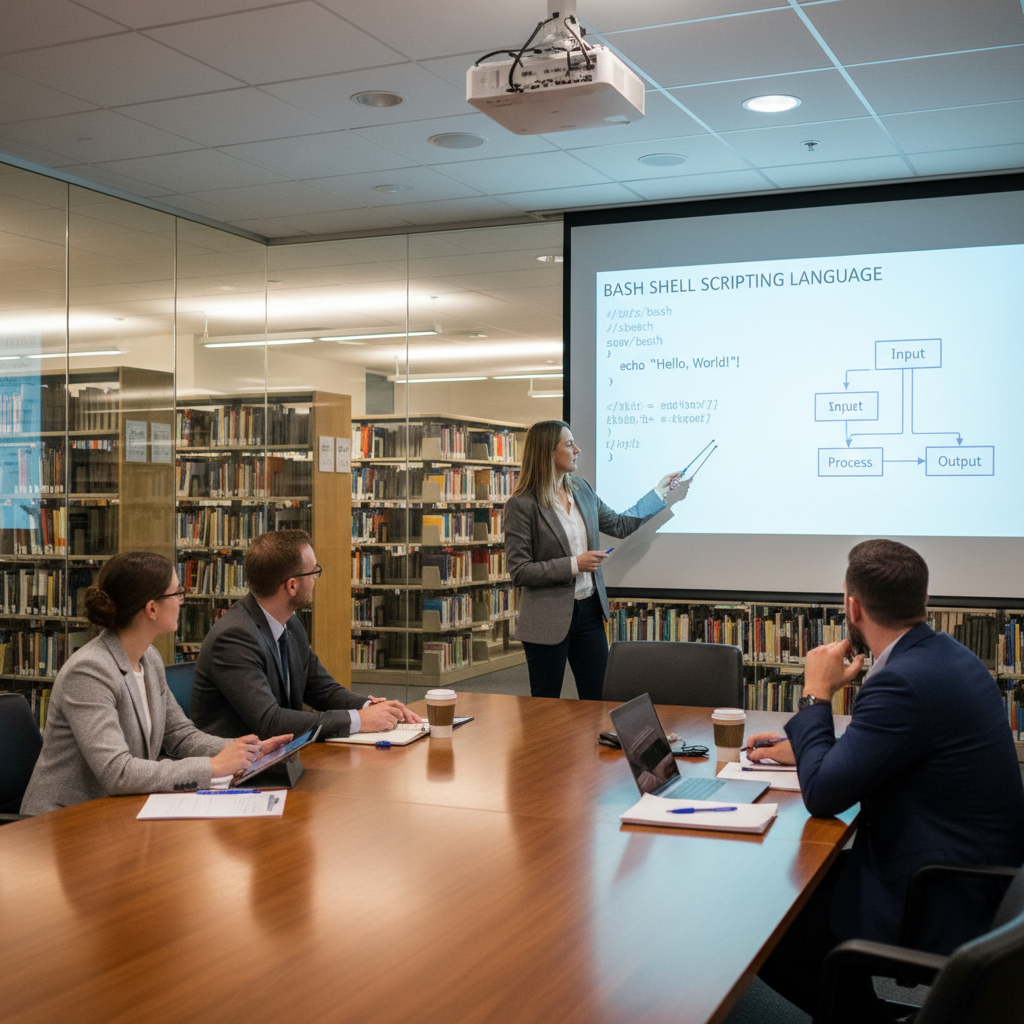
The terminal is where Linux reveals its true nature, and while new users often approach it with caution, the advanced commands that live beyond the basics of ls and cd are less intimidating than they appear once you understand the elegant logic connecting them. The pipe operator | is perhaps the single most powerful concept in the Linux command line — it takes the output of one command and feeds it directly as input into another, allowing you to chain simple tools together into sophisticated data processing pipelines without writing a single line of code. A command like ps aux | grep firefox | awk ‘{print $2}’ illustrates this beautifully: ps aux lists every running process, grep firefox filters for only the lines containing that word, and awk ‘{print $2}’ extracts just the process ID column from the result — three simple tools producing a precise answer in a single line. The find command deserves equal attention, capable of locating files anywhere on the filesystem by name, size, modification date, permissions, or file type, and its -exec flag allows you to perform an action on every file it finds in a single pass — find /var/log -name “*.log” -mtime +30 -exec rm {} ; for example will locate and delete every log file older than thirty days without requiring a loop or a script. Learning to think in pipelines and to compose commands from smaller pieces is the foundational mental shift that separates a terminal user from a terminal power user.
Advanced terminal commands in Linux can greatly enhance your productivity by enabling you to perform complex tasks efficiently. Commands like ps for process management and grep for text searching are essential tools for any Linux enthusiast looking to improve their command line skills.
Text processing is an area where the Linux command line has no equal, and the trio of grep, sed, and awk forms the backbone of an extraordinarily capable text manipulation toolkit that rewards every hour invested in learning it. grep with its -r flag searches recursively through entire directory trees for a pattern, and combining it with -l to return only filenames or -n to include line numbers transforms it from a simple filter into a powerful code and log analysis tool. sed — the stream editor — processes text line by line and applies transformations, making it the tool of choice for find-and-replace operations across files: sed -i ‘s/old-domain.com/new-domain.com/g’ config.yml edits the file in place, replacing every occurrence of the old string with the new one without ever opening a text editor. awk operates at a higher level still, treating each line of input as a record divided into fields, making it ideal for processing structured data like CSV files, log entries, and command output — a one-liner like awk -F’,’ ‘{sum += $3} END {print sum}’ data.csv sums an entire column of a CSV file in milliseconds regardless of how many rows it contains. These three tools were written decades ago and have not needed to change because the problems they solve have not changed either, and fluency in all three is one of the clearest markers separating a Linux novice from someone who has genuinely internalized the command line way of thinking.
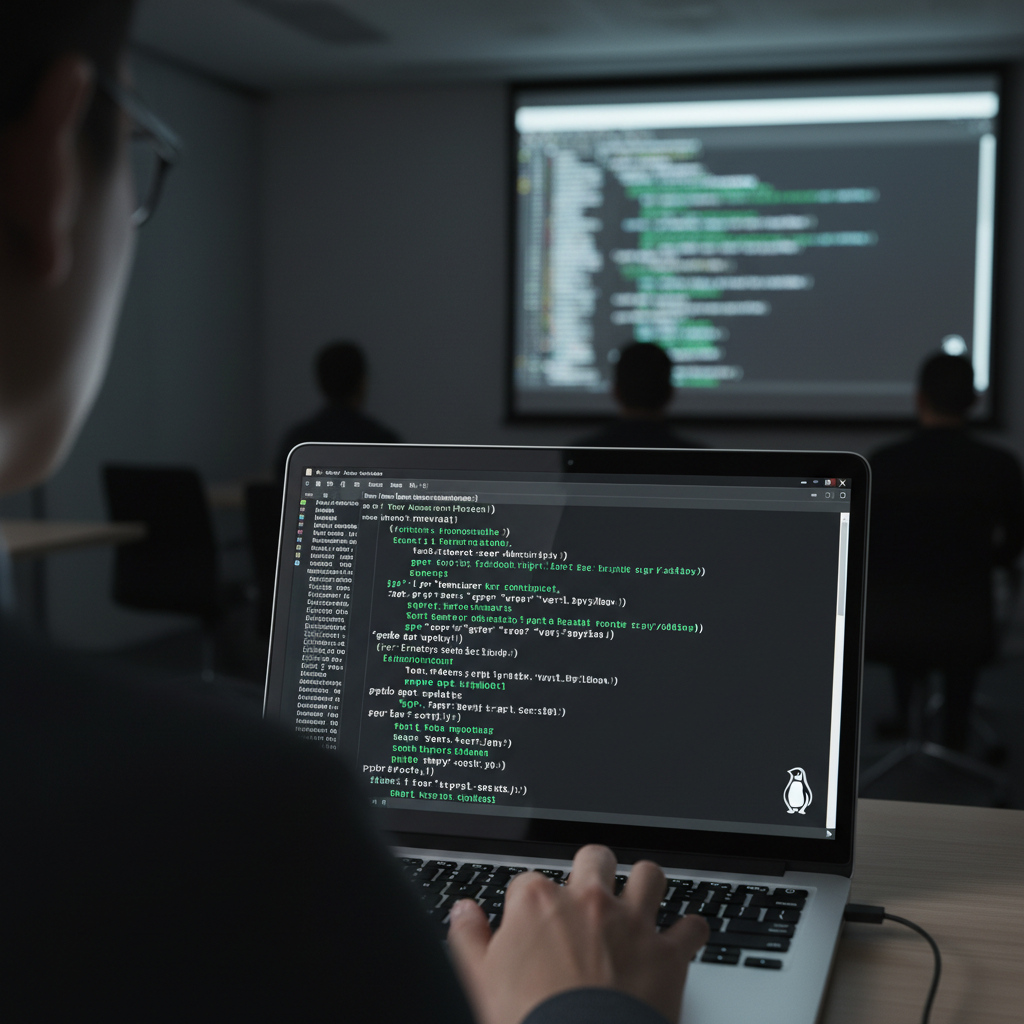

Process management and system inspection commands give you a level of visibility into your running system that graphical tools rarely match for speed or precision. htop is the friendlier successor to top, offering a color-coded, interactive view of CPU, memory, and swap usage alongside every running process, sortable by any column and actionable with keyboard shortcuts that let you kill or renice a process without leaving the interface. For disk usage, du -sh /* gives you a human-readable breakdown of space consumed at the top level of your filesystem, and piping it through sort -rh ranks the results from largest to smallest — an invaluable first step when tracking down what has consumed your available disk space. lsof — list open files — is one of the most underappreciated diagnostic tools in the Linux arsenal, capable of revealing which processes have a given file or port open: lsof -i :80 immediately shows you what is listening on port 80, a command that saves considerable time when a web server refuses to start because something else has claimed its port. The watch command deserves mention for the simple but powerful trick of executing any command repeatedly at a defined interval — watch -n 2 ‘df -h’ updates your disk usage display every two seconds, turning any command into a live monitoring dashboard without requiring a dedicated tool. Combining these inspection commands with the text processing tools from the previous paragraph creates a diagnostic capability that is genuinely faster and more precise than any graphical system monitor.
Wrap Up
Mastering advanced terminal commands is ultimately not about memorizing syntax — it is about internalizing a philosophy of composability, precision, and respect for the machine you are working with. The commands covered here are not exotic curiosities reserved for system administrators and developers; they are practical, daily-use tools that will save you time, reduce your dependence on graphical interfaces that obscure what is actually happening, and deepen your understanding of how your system operates at every layer. The best way to build fluency is not to study commands in isolation but to reach for the terminal the next time you face a problem, even when a graphical solution is available — the friction you feel at first is the feeling of capability being built. Keep a personal reference file of commands and one-liners that have solved real problems for you, add to it regularly, and revisit it often, because the most useful terminal knowledge is the kind anchored to a specific memory of a problem it actually solved. The terminal has been the home of serious Linux work for half a century because it earns that loyalty every day — and the enthusiasts who commit to learning it deeply inevitably look back on that commitment as one of the best investments they ever made in their own capabilities.
Leave a Reply